Highlights
The 'highlight' type of key moment is where we zoom in on a specific part of the screen and explain it.
With this type, DemoTime will constantly look for a key UI element. When we find it, the edited video zooms in and explains that content.
This creates a super immersive highlight-reel.
Pro tip an ideal highlight-reel contains a mix of timelapses and highlights. This creates a good balance and keeps things interesting.
Creating a UI highlight
To create a UI highlight, you must have the DemoTime browser extension installed. Right click on any page, hover the "DemoTime" menu section, and click "Create highlight".
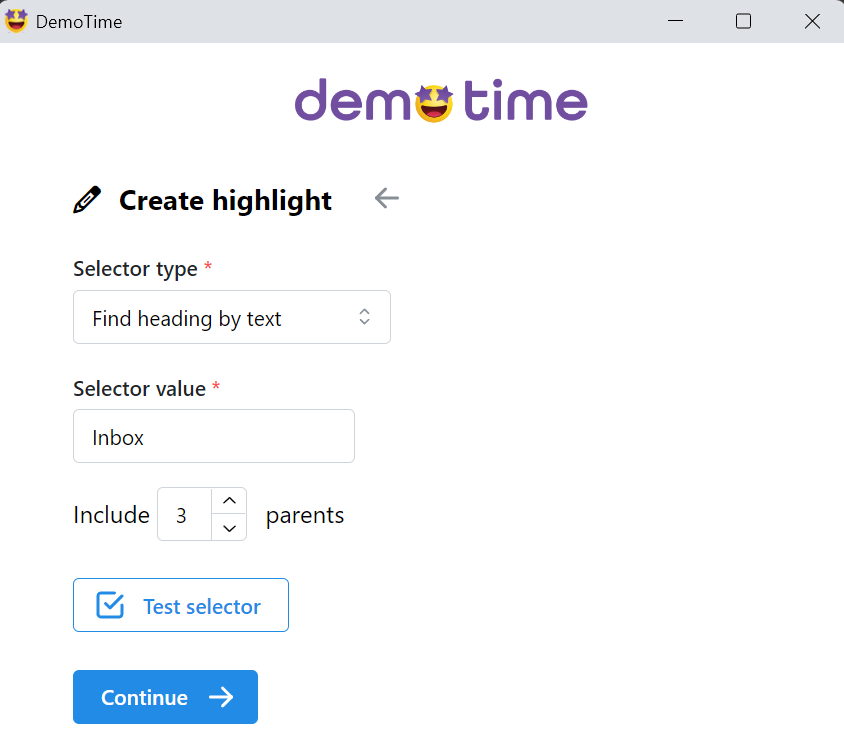
This screen opens:
Selector
The hardest part of creating a highlight is setting up the selector.
There's two parts to this:
- The "Selector type" is the strategy we will use to find the element. For example "Find heading by text" look for a heading on your page containing certain text.
- The "Selector value" is the corresponding value to look for. E.g. in this example screenshot we are looking for a heading containing the text "Inbox".
Choosing parents and testing the selector
With your selector set up, you can click "Test selector" to see if it works.
A purple-dotted box will appear on your UI page. This is the element we found.
Often - this box will be too small. E.g. in our example, the box is only around the "Inbox" heading. So increase the "Include x parents" value and click "Test selector" again. Keep increasing and testing until the purple box is the correct size/covers the entire section you want to highlight.
In our example screenshot, we found the correct box was the heading we targeted + 3 parents. (A parent is an increasingly large container around the target).
Finishing up
Once you're happy with your selector, click "Continue".
The will take you to the final screen:

This is basically exactly the same as for timelapses:
- The Title and icon is what we will show on the screen during a demo recap
- The matching URL tells us which pages to look for this on. Replace any IDs or dynamic parts of the URL which may change with a
*wildcard. - The text in the speech marks is what you want the voiceover to say in the video to explain this element when we find it
Once you're done click Create highlight to finish.